Meetings
To start recording a meeting, hold Control and press 🌐, or choose Start Meeting from Jot in the menu bar. To stop, do the same again.
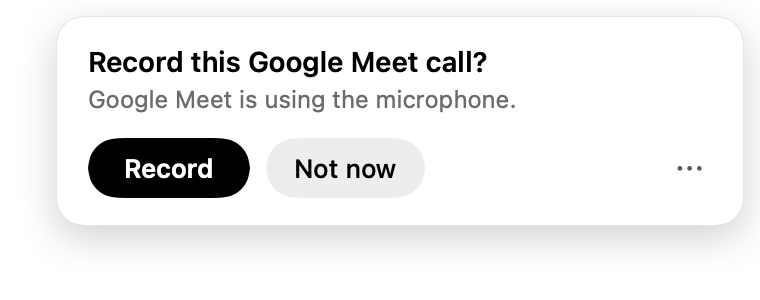
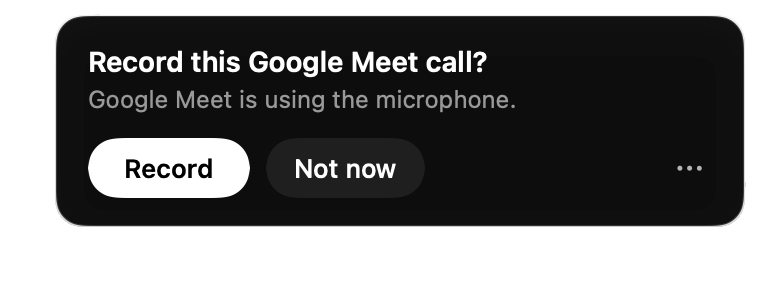
When a call starts in Zoom, Teams, Slack, FaceTime, or a browser, a message appears that offers to record it.
While it records
Jot records two sources: your microphone, and the sound of the call playing on your Mac. The pill shows the level of each, so you can check that both are coming through. From the pill, you can switch microphones, pause, and end the meeting.

To add a screenshot to the meeting, press 🌐 twice.
Written down as it happens
Jot writes the meeting to a folder in Documents › Jot › Meetings while people talk. The file, recording.xml, grows as the meeting goes on, so an AI agent can read it before the meeting ends. For agents explains how to read it.
Afterward
When the meeting ends, a zip of its words, timings, and shots floats in the bottom-right corner of your screen for 15 seconds. Drag it into any app, or right-click it for Copy Path and Show in Finder. Click it to open the meeting.
Open the meeting in the Library. Jot labels each voice in the meeting, such as sys.a and sys.b. Type a name next to each one under Name the voices, and the transcript and its exports use that name.
To record the sound of the call, Jot needs System Audio Recording. You turn it on during setup, and Permissions in Jot’s window shows whether it’s on.