
Capture
A capture lets you show as well as tell. Press 🌐 twice and talk about what’s on your screen. Take screenshots as you go, and draw on them to point things out. Press 🌐 again, and Jot pastes your words and screenshots where you started, as one message.
It works well in an AI chat, such as Claude Code or ChatGPT, or in a bug report.

Take screenshots
- Hold the Space bar and draw on the screen. When you release it, Jot takes a screenshot of what’s under your marks and adds it to the strip at the side.
- Press Shift-Command-4 and drag over part of the screen, or press the Space bar and click a window. The screenshot goes into the capture instead of onto your desktop.
- Press Shift-Command-3 to take the whole display under the pointer.
Draw on them
To keep drawing without holding the Space bar, click ✎ on the pill. The tools appear above the pill: a highlighter, a box, an arrow, and numbered markers. You can also press 1 to 4 to choose one. Click Snap to take the screenshot, or press Esc to stop drawing.

Where it goes
To finish, press 🌐 or click ✓. Jot pastes your words where your cursor was, with a marker such as [image 2] where you took each screenshot, followed by the screenshots.
If there’s nowhere to paste, the capture waits on a card in the corner of the screen. Click Paste to paste it where your cursor is now, or click Send to to paste it into another app.
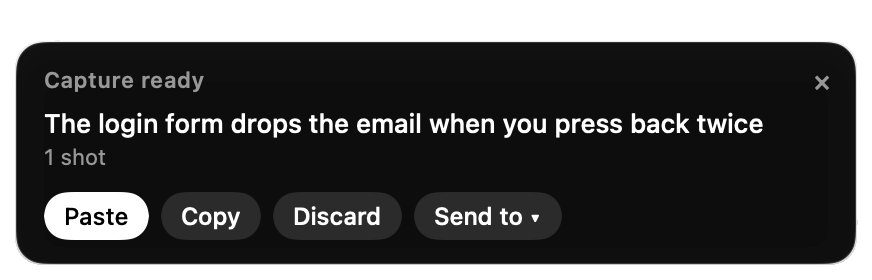
To discard a capture, press Esc twice.
In Settings, you can have every capture wait on the card, or paste the screenshots as one picture. Jot also keeps every capture in the Library.
A capture needs Input Monitoring, to detect the Space bar and Shift-Command-4, and Screen Recording, to take the screenshots. You turn on both during setup.